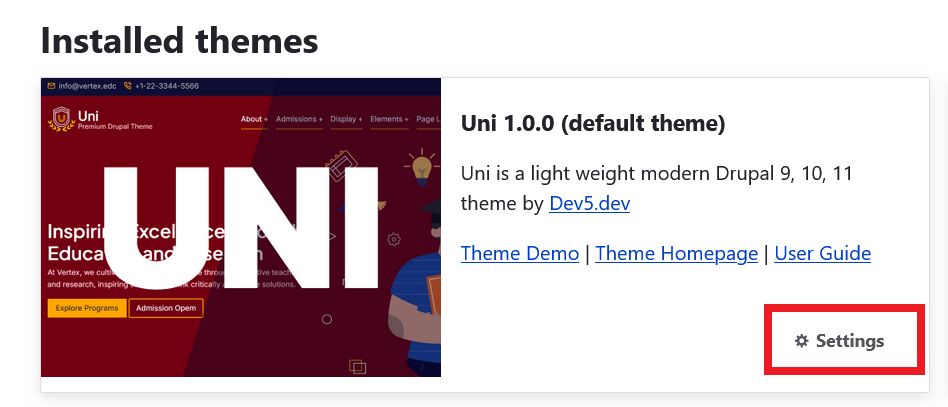
This documentation explains how to install the Uni Drupal Theme on your Drupal website. You can install the theme using Composer or manually using FTP / File manager.
Methods to Install Theme
There are two common methods to install a new Drupal theme. You can use either method to install the Uni theme.
-
Composer: If you are familiar with composer and have composer access, this is the easiest and preferred method.
- Manual Installation Using FTP / File Manager: Use this method if you cannot use composer or wants to install the theme manually.
Method #1 – Install using composer
1.1 – Get Composer Command
Visit Uni theme project page on Drupal.org to get the composer command to install Uni theme: https://www.drupal.org/project/uni
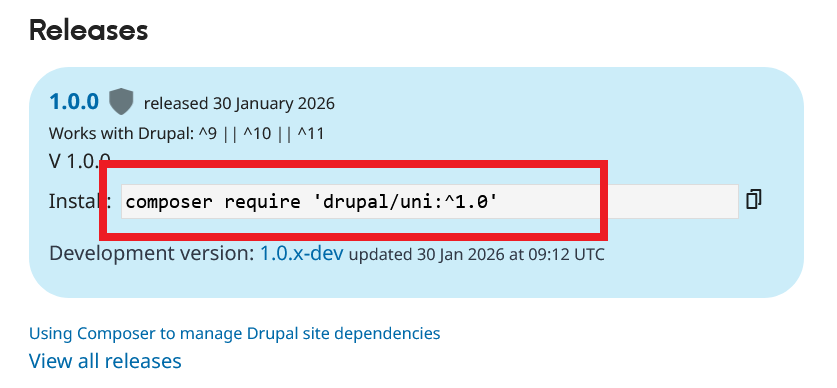
1.2 – Run composer command
Log in to your server via SSH / terminal and go to your Drupal root directory. Now run the composer command. Composer will download the theme and place it inside:
/themes/contrib/uni
1.3 – Enable the Theme
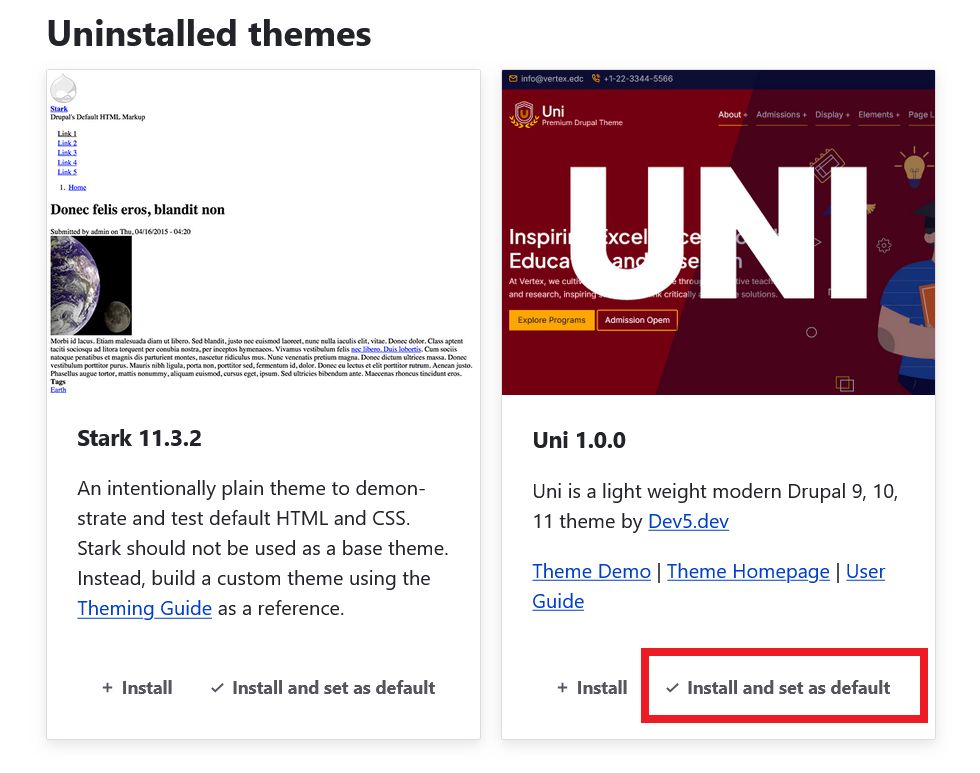
After installing the theme using composer, log in to your Drupal admin dashboard.
- Go to Appearance page.
- Find Uni theme.
- Click Install and set as default.
1.4 – Clear Cache
After enabling the theme, clear the Drupal cache to ensure all styles and configurations load correctly from:
example.com/admin/config/development/performance
Method #2 – Install Manually Using FTP / File Manager
Use this method if you do not have access to Composer or prefer to install the theme manually.
2.1 – Download Theme
-
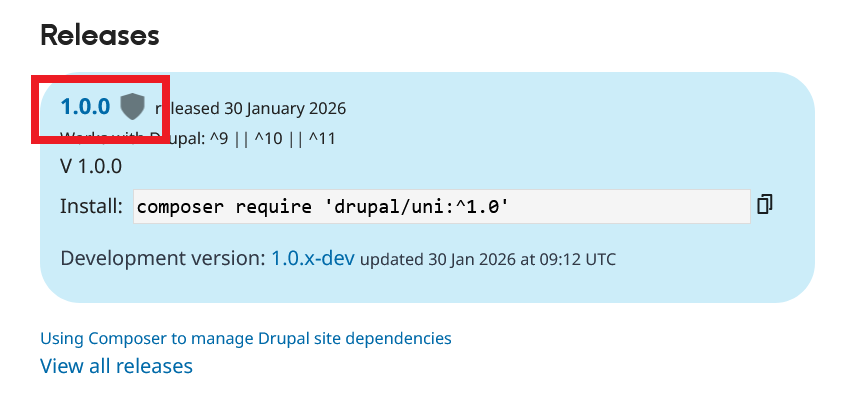
Visit Uni theme project page on Drupal.org: https://www.drupal.org/project/uni
-
Click the version name in the Releases section. This will take you to the download page of the theme.
-
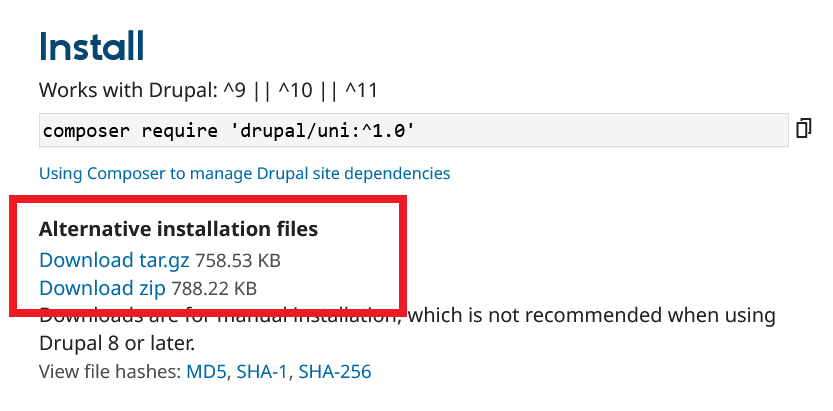
Click Download tar.gz or Download zip to download and save the .zip or .tar.gz file to your computer.
2.2 – Extract The Downloaded
Extract the downloaded .zip or .tar.gz file on your computer. After extraction, you will have a folder named uni.
2.3 – Upload the Theme Using FTP
- Connect to your hosting server using any FTP client (such as FileZilla). You can also use File Manager of your hosting control panel (such as cPanel / DirectAdmin / Plesk).
- Upload the extracted uni folder to /themes or /themes/contrib/ or /web/themes or /web/themes/contrib/ directory of your Drupal installation.
2.4 – Enable the Theme
After uploading theme files, log in to your Drupal admin dashboard.
- Go to Appearance page.
- Find Uni theme.
- Click Install and set as default.
2.5 – Clear Cache
After enabling the theme, clear the Drupal cache to ensure all styles and configurations load correctly from:
Configuration Development Performance
example.com/admin/config/development/performance
Check Theme Settings
After enabling the theme, go to the theme settings page to configure the available options.