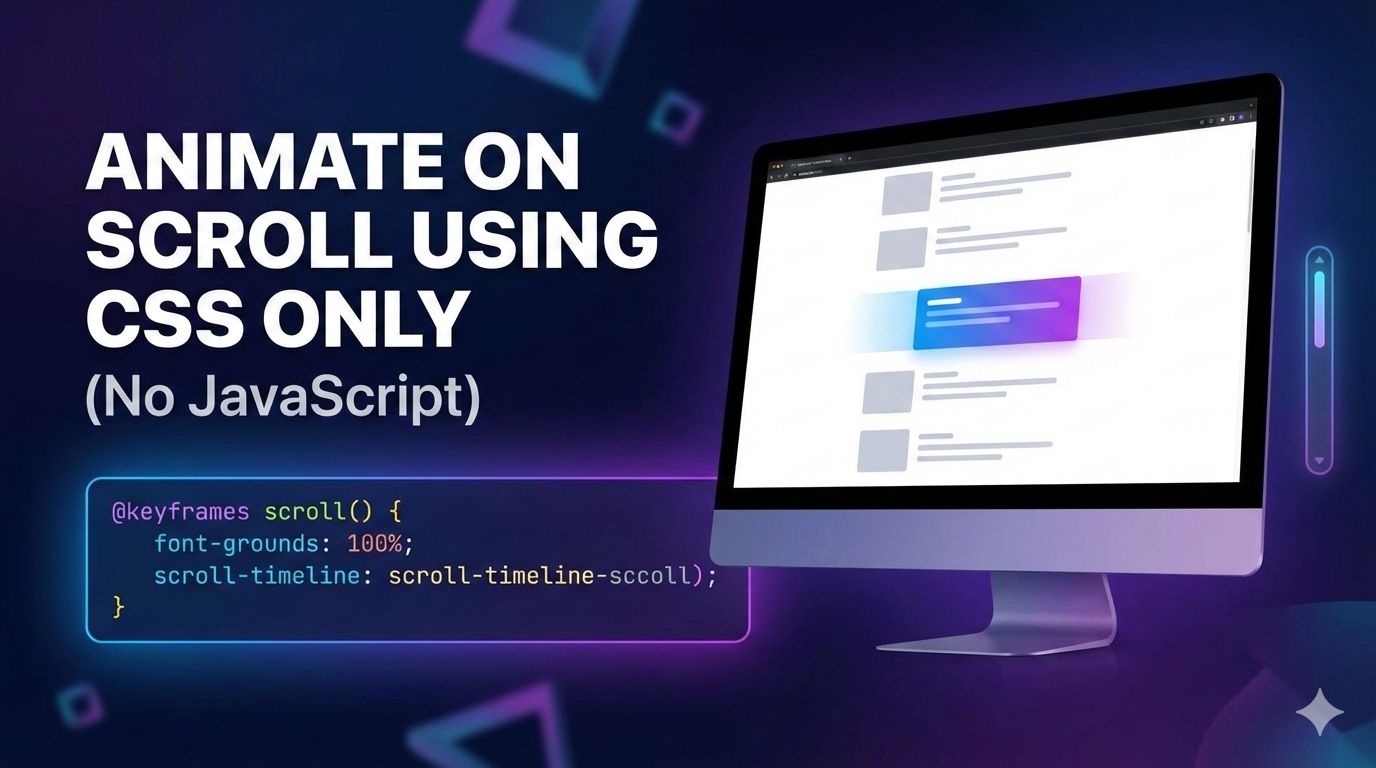
In this post, we will learn how to make an element appear when it comes into the browser view using pure CSS (no JavaScript). We’ll also explore scroll-based animations for elements using CSS only.
Learn how to use modern CSS scroll-driven animations to make elements appear with smooth effects as they enter the browser viewport. Pure CSS, no JavaScript required.
Video Tutorial
Learn this topic step by step with a clear video walkthrough.
Fade-In Effect
We will start with a fade-in effect. The element will slowly fade in as it begins to enter the browser viewport.
Step #1 Create HTML
We are going to use an image here. I will add class fade-up to this image.
<img class="fade-up" src="girl.jpg" alt="image">
Step #2 Add CSS
Add below css for fade-up effect.
.fade-up {
  animation: fade-up linear;
  animation-timeline: view();
  animation-range: entry 0% cover 40%;
}
@keyframes fade-up {
  from {
    opacity: 0;
  }
  to {
    opacity: 1;
  }
}
Grow From Left to Right
In the grow-from-left effect, the element expands to its full width from the left side as it enters the browser viewport.
Step #1 Create HTML
We are going to use an image here. I will add class grow-from-left to this image.
<img class="grow-from-left" src="girl.jpg" alt="image">
Step #2 Add CSS
Add below css for grow-from-left effect.
.grow-from-left {
  animation: grow-from-left linear;
  animation-timeline: view();
  animation-range: entry 0% cover 40%;
}
@keyframes grow-from-left {
  from {
    opacity: 0;
    clip-path: inset(0 90% 0 0);
  }
  to {
    opacity: 1;
    clip-path: inset(0 0 0 0);
  }
}
Grow From Right to Left
In the grow-from-right effect, the element expands to its full width from the right side as it enters the browser viewport.
Step #1 Create HTML
We are going to use an image here. I will add class grow-from-right to this image.
<img class="grow-from-right" src="girl.jpg" alt="image">
Step #2 Add CSS
Add below css for grow-from-right effect.
.grow-from-right {
  animation: grow-from-right linear;
  animation-timeline: view();
  animation-range: entry 0% cover 40%;
}
@keyframes grow-from-right {
  from {
    opacity: 0;
    clip-path: inset(0 0 0 90%);
  }
  to {
    opacity: 1;
    clip-path: inset(0 0 0 0);
  }
}
Code Explanation
animation-timeline
animation-timeline: view();
This links the animation to the element's position in the browser viewport. So, we can use it for scroll based animation.
animation-range
animation-range: entry 0% cover 40%
This tells when the animation should start and complete. entry 0% means the animation should start when the element touches the bottom of the screen. Or animation starts when the element enters the viewport.
cover 40% means animation will complete when 40% of the element is visible.
Video Tutorial
Learn this topic step by step with a clear video walkthrough.