
Always back up your website before performing updates (both files and database). You can also create full site backup before updating the theme.
Methods to update theme
There are two methods you can use to update saar theme.
- Using Composer
- Manual using FTP
If you have used composer to install the theme.
If you have manually installed saar theme by uploading theme files using FTP.
Update theme using composer
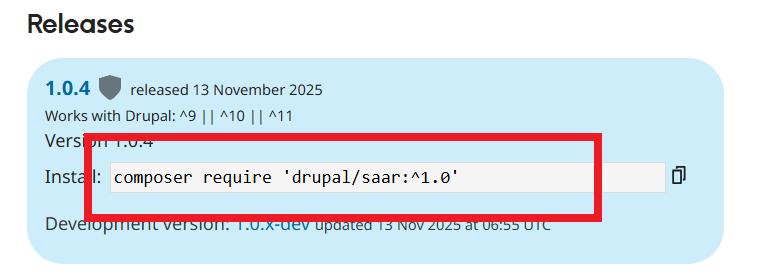
Visit the project page to get the composer command.
https://www.drupal.org/project/saar
The composer update command will be like:
composer update 'drupal/saar:^1.0'
composer require 'drupal/saar:^1.0'
Clear Drupal cache
After running composer command, clear Drupal cache from:
Administration > Configuration > Performance and click on Clear all caches.
Re-save theme settings
Navigate to theme settings page and save theme settings. This is required because the new version can have new settings. Your old theme settings will remain unchanged.
example.com/admin/appearance/settings/saar
Update theme using FTP
Download Latest Version of theme
Visit the project page and download the latest version of saar theme:
https://www.drupal.org/project/saar
Extract the download file
The download theme file will be in .zip or .tar.gz format. Extract this downloaded file.
Connect Using FTP
Connect to your hosting server via FTP. You can use any free FTP client like FileZilla to connet to your hosting server.
Navigate to the Theme Directory
Once connected via FTP, locate your Drupal installation folder. The theme files are usually located under:
/themes/ or /web/themes/ or /themes/contrib/ or /web/themes/contrib/ in your Drupal root directory.
Upload New Theme Files
Upload the new theme files to the correct theme folder.
- During upload select overwrite the current files with the new files.
- Make sure to upload all the files without any error message.
Clear Drupal cache
After uploading theme files, clear Drupal cache from:
Administration > Configuration > Performance and click on Clear all caches.
Re-save theme settings
Navigate to theme settings page and save theme settings. This is required because the new version can have new settings. Your old theme settings will remain unchanged.
example.com/admin/appearance/settings/saar